Instructions on How to Adjust Your Monitor to Ensure Accurate Colors
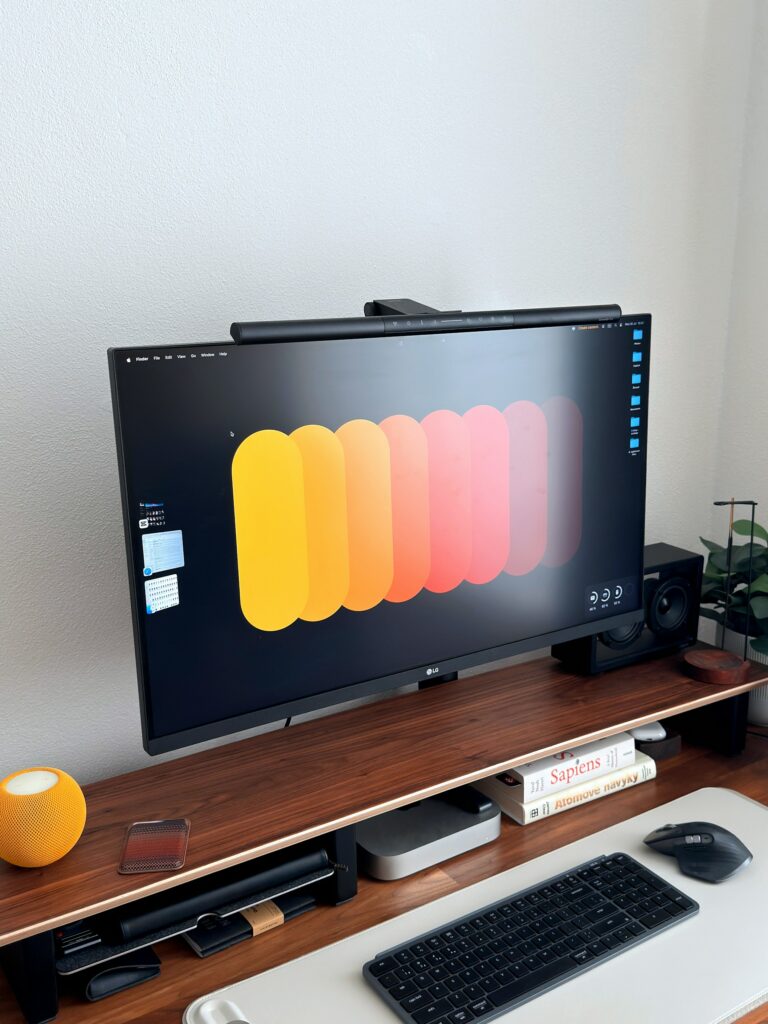
Instructions on How to Adjust Your Monitor to Ensure Accurate Colors
It is important to calibrate your monitor so that the colors you see on the screen correspond to the colors that are really present in your photographs, films, and designs. When it comes to producing consistent results, color accuracy is vital, regardless of whether you are editing photographs, viewing movies, or creating digital artwork. Because of the factory settings, many displays show colors that are either excessively bright, too dull, or colored by the manufacturer. This problem may be fixed by proper calibration, which also results in a display experience that is more accurate to life.
An Understanding of the Importance of Calibration for Monitors
Every display has its own unique way of rendering colors, which is determined by a variety of elements including the panel type, the backlight, and the factory defaults. The appearance of two identical monitors might be different when viewed side by side. Through the process of changing brightness, contrast, gamma, and color temperature, calibration assists in standardizing these variances more effectively. It is essential for photographers, designers, and video editors to have precise color representations in order to guarantee that their work will seem uniform across all platforms and in printed form.
Getting Ready for the Calibration Process
Allow your monitor to warm up for at least twenty to thirty minutes before beginning the calibration process. This will ensure that it reaches the temperature at which it normally operates. In order to minimize bright or fluctuating light sources, you should make sure that the ambient lighting in your office is set to a steady level. It is recommended that you reset your monitor to its factory default settings in order to remove any past alterations that could have influenced the calibration results.
Using the Calibration Tool that is Built Into Windows
One of the tools that comes pre-installed with Windows is called Display Color Calibration. This feature may be accessed by entering “Calibrate display color” into the search bar located in the Start menu. As you make adjustments to the gamma, brightness, contrast, and color balance, the wizard will walk you through the process. If you want to obtain balanced graphics, attentively follow the directions that appear on the screen and compare the example photographs. After everything is finished, you will be able to evaluate your new setup in comparison to the old one and save the calibration that seems to be the most natural.
Making Changes to the Contrast and Brightness
Your display’s brightness is responsible for determining the total light output, while contrast is what defines the difference between parts that are dark and sections that are bright. Your goal should be to get a degree of brightness that makes whites seem dazzling without washing away details, and a level of contrast that maintains blacks that are deep even without being crushed. By making the appropriate adjustments, one may guarantee that both dark and bright tones are visible without using distortion.
Establishing the Appropriate Gamma
Your image’s midtones are affected by gamma, which also helps to maintain a balance of brightness and contrast over the grayscale spectrum. The gamma value that is commonly used by default in Windows is 2.2, which gives the majority of users a more natural look. The use of gamma that is not proper might cause pictures to seem either too flat or excessively dark. Through the use of visual examples, the calibration wizard assists in the process of fine-tuning this option until you obtain seamless transitions.
Changing the Temperature of the Color
By adjusting the color temperature, you may choose whether the colors on your display are warm or chilly. When it comes to correct color reproduction, it is typically suggested to choose a setting that is around 6500K (which is sometimes designated as “sRGB” or “Standard”). A yellowish hue is added by temperatures that are warmer, while a blue hue is added by temperatures that are colder. The desired result is a white color that is neutral and does not favor either tone.
Utilization of Calibration Devices for Hardware
If you want precision that is suitable for professionals, you might think about utilizing a hardware colorimeter or spectrophotometer. Devices such as the X-Rite and the Datacolor Spyder connect to your computer via a USB port and automatically measure the color output of your screen. After that, they generate an ICC profile, which Windows use in order to deploy fixes throughout the whole system. The accuracy of this procedure is superior to that of manual calibration, and it guarantees consistency over an extended period of time.
Managing and Applying ICC Profiles Application
Windows will save the ICC profile of your display once it has been calibrated. This profile specifies how colors should look on your screen. To manage profiles, launch Color Management from the Control Panel. This will allow you to manage profiles. Please check that your calibrated profile is set to the default setting here. When you utilize numerous monitors, you should calibrate each one individually and set the profile that corresponds to it in order to ensure that the color accuracy is consistent across all of the panels.
Keeping up with Consistency in the Accuracy of Color
Monitoring devices are susceptible to drifting over time as a result of aging components and changing light conditions. Make sure to recalibrate your display at least once every few months, particularly if you do work that is color-critical. Maintain uniform illumination in your workstation and steer clear of glare and reflections, both of which have the potential to distort color perception.
The process of calibrating your monitor is one of the most straightforward and efficient methods to guarantee that the colors shown on it are true. The correct configuration ensures that the colors shown on your screen are accurate representations of the actual world, regardless of whether you use the calibration tool that is integrated into Windows or a hardware device that is specifically designed for this purpose. When you calibrate your device on a regular basis, you not only increase the visual accuracy of your work, but you also improve the overall quality of your viewing experience.